

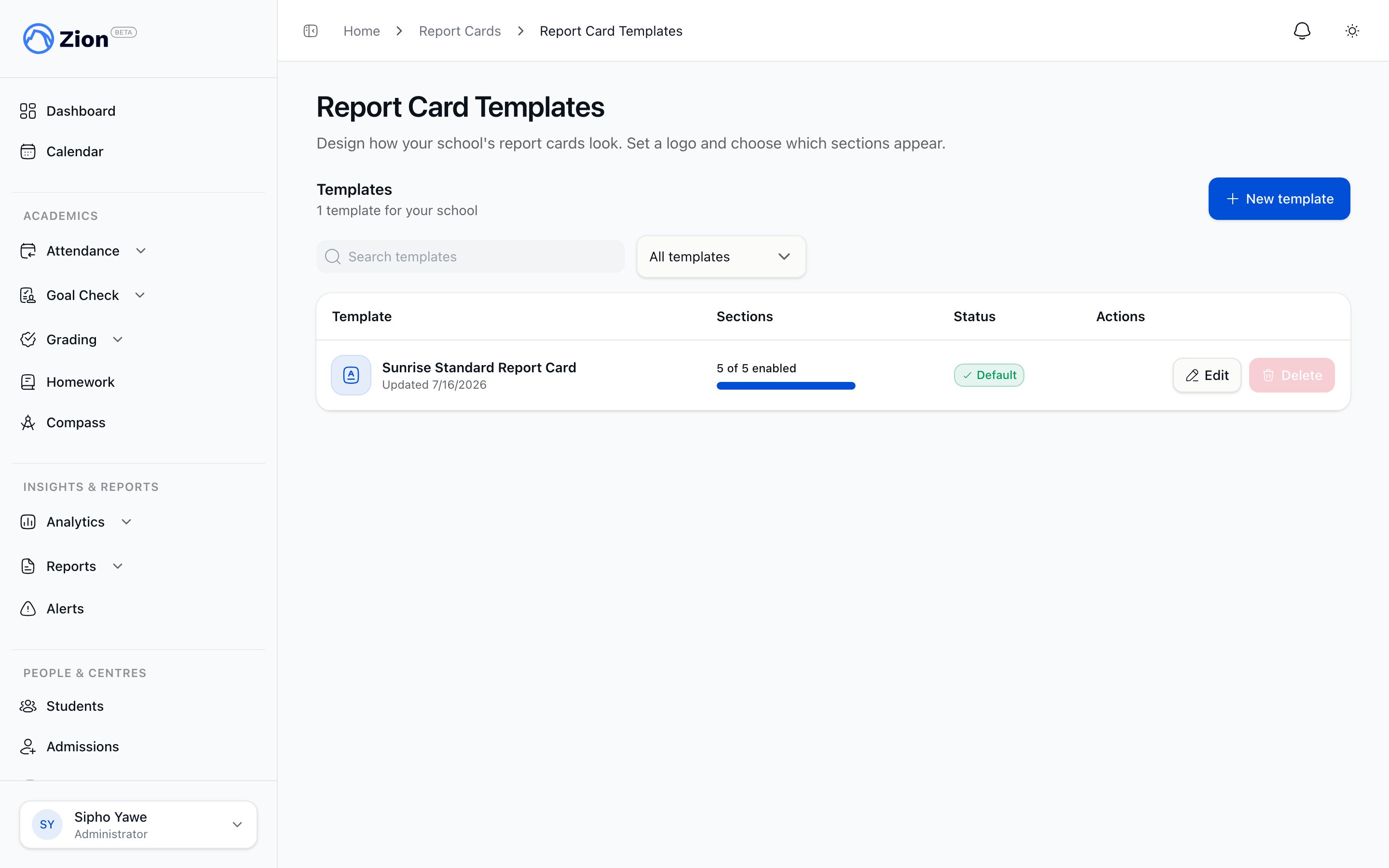
The template builder with the school logo and section order controls.
The template builder is administrator-only. Supervisors and monitors can generate and distribute report cards, but they cannot create or edit templates.
Creating or editing a template
1
Open Templates
From Admin > Report Cards, click Templates. This link only appears for administrators.
2
Start a new template or edit an existing one
Click New template, or Edit on a template already in the list.
3
Name the template
Enter a name. This is required.
4
Upload a logo (optional)
Upload a JPG, PNG, or SVG file. Other file types are rejected before upload.
5
Toggle sections on or off
Turn each of the five sections on or off depending on what the school wants printed.
6
Reorder sections
Use the up and down arrows to set the order sections appear in on the finished PDF.
7
Set as default (optional)
Turn on Use as the school’s default template if this template should be used whenever staff generate report cards without picking one explicitly.
8
Save
Save the template. It becomes available to select the next time staff generate report cards for a term.
The default template cannot be deleted. Its delete button is disabled in the template list until another template is set as the default.
The five sections
A template controls five fixed sections. You cannot add custom sections, only enable, disable, and reorder these:Data rules for each section
Term scope
Term scope
Test scores, attendance, and Goal Check Summary are bounded to the selected term. PACE Grades is the one exception: the “Completed” count is labelled “Completed (overall)” because it reflects all-time PACEs completed, not just the current term.
Character Notes are parent-safe only
Character Notes are parent-safe only
Only public notes (notes marked visible to parents) appear in the Character Notes section. Private notes are never included in a report card, at any stage of compilation.
Empty sections
Empty sections
If a section has no data for a student in the selected term, it renders as “No data for this term” rather than being hidden.
Report Cards Overview
What a report card contains and how term data is compiled.
Generating and Distributing
Select a term, review readiness warnings, generate, and send to parents.
Permanent Record
The multi-year academic record, separate from term report cards.
Roles and Permissions
Who can generate, distribute, and configure report cards.