

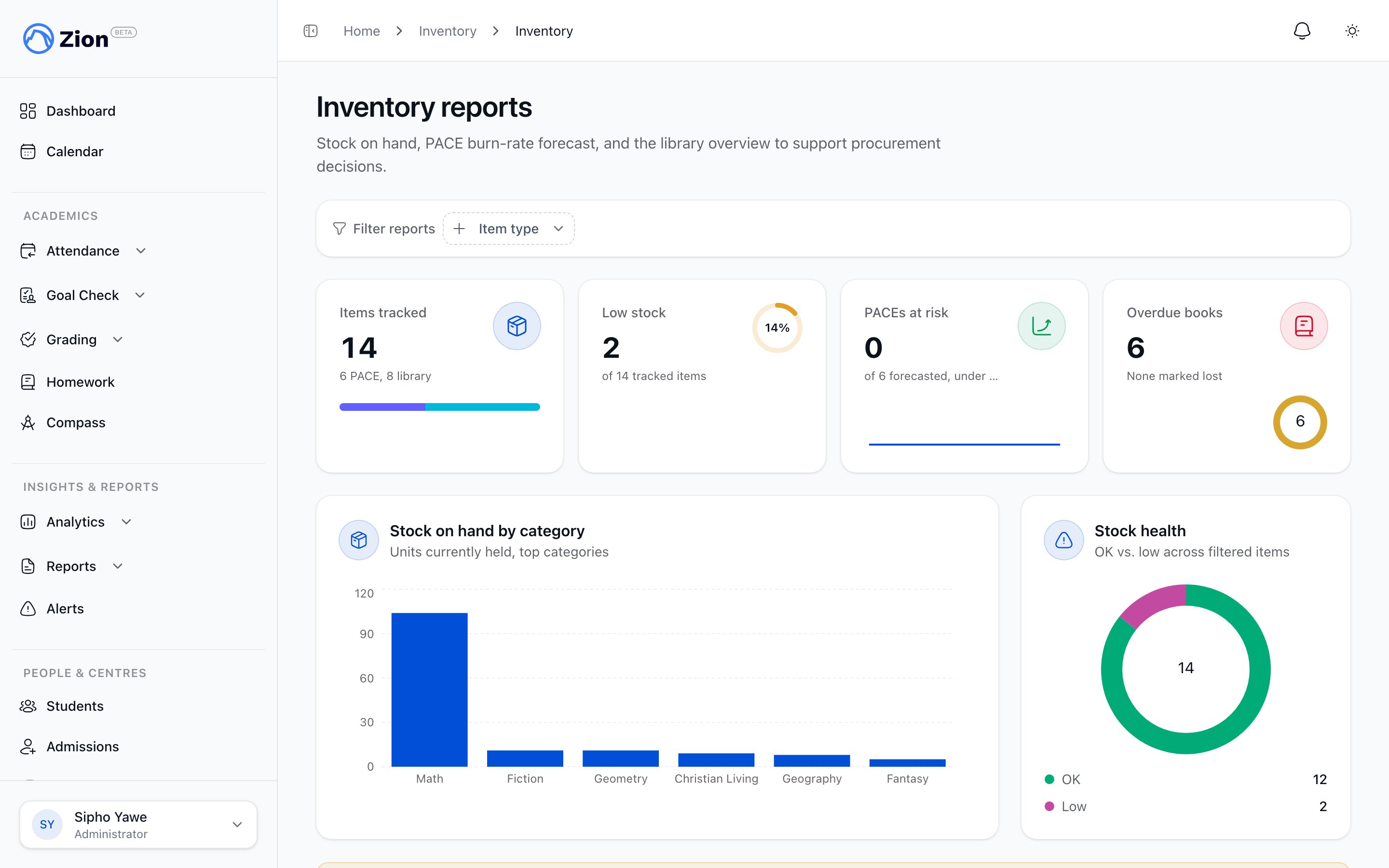
Stock on hand with low-stock items flagged for reorder
Report summary at a glance
At the top of the page, a filterable summary shows items tracked (split between PACE and library), how many items are low on stock, how many PACEs are at risk of running out within two weeks, and how many library books are overdue. A filter narrows the whole summary to PACE items only or library items only. Below it, a chart breaks stock on hand down by category so you can see at a glance where the bulk of your stock sits.Stock on Hand
The Stock on Hand report lists every tracked item, PACE or library, with its current quantity. An item is flagged low when its quantity on hand is at or below its reorder threshold, and that threshold is greater than zero. Setting a reorder threshold of 0 turns off the low flag for that item, so items you do not want to track for reordering (uncommon items, one-offs) will not clutter the report. You can filter the table by item type, location, and category, sort it by name or quantity on hand, and refresh it without leaving the page. Download CSV exports the rows currently shown, respecting your filters.Low-stock widget and alerts
A low-stock panel sits on the reports page and lists every item currently at or below its reorder threshold. Items at or below zero are marked in the destructive colour; items above zero but at or below threshold use the warning colour. When nothing is low, the panel shows “All stock above threshold.”The same condition also triggers an automatic alert outside the report. Whenever an issue movement or a negative adjustment pushes an item from above its threshold to at or below it, every administrator, and any supervisor granted permission to manage inventory, gets an in-app and email alert. Alerts are deduplicated to one per item within a rolling 24-hour window, so repeated small movements will not spam the same recipients.
PACE burn-rate and stock-out forecast
The burn-rate forecast estimates, for each PACE item, how many days of stock remain and when it will run out. For each item it calculates the average daily usage from issue movements over a lookback window you choose (7, 30, or 90 days, defaulting to 30), then divides remaining stock by that rate to project days remaining and a stock-out date.
Rows with fewer than 14 days remaining are highlighted so they stand out against the rest of the list. An item with no issue activity in the selected window shows “No usage data” instead of a forecast, since there is no usage rate to project from.
Use the Download CSV button on this report to download the name, PACE number, average daily usage, days remaining, and projected stock-out date for the selected lookback window.
Untracked PACEs nudge
When a PACE is assigned to a student but no inventory item exists for that PACE number and subject, there is nothing to reduce, so the assignment does not affect stock. The untracked-PACEs nudge is a dismissible callout on the reports page that names the first untracked PACE and how many others exist. Dismissing it is remembered per browser.1
Notice the callout
Look for “Some assigned PACEs are not tracked” on Inventory Reports, or open the untracked PACEs report for the full list.
2
Add the missing item
Follow through to add an inventory item for that PACE number and subject.
3
Confirm future assignments reduce stock
Once the item exists, assigning that PACE to a student will reduce its quantity on hand going forward.
Library overview
The library section of the reports page shows the ten most-borrowed library items and every overdue, still-out, non-lost checkout, sorted with the most overdue first, along with days overdue for each. This report reads from the same records used for PACE stock, filtered to the ones marked as library items, while day-to-day checkout and return actions live in the library feature.Checking books out, returning them, and marking items lost happen on the library pages, not here. See Library overview for those workflows.
Movement ledger
Every change to stock, whether a shipment, an assignment issuing a PACE, a return, a loss, or a manual adjustment, is recorded as an entry in the movement ledger rather than as a direct edit to the quantity. The ledger view at Programs & Resources > Inventory > Inventory Movements shows each movement’s item name, signed delta (green for increases, red for decreases), the name of the staff member who performed it, any notes, and the timestamp. You can filter the ledger by item, by reason (purchase, issue, return, loss, or adjustment), and by date range. Click Export CSV to download the rows matching your current filters, including who performed each one, useful for reconciling a shipment or preparing figures for a meeting or audit.Inventory overview
How PACE and library stock are tracked, and who can do what.
Receiving and adjusting stock
Record shipments and correct stock counts.
Library overview
Checkout, return, and overdue workflows for library items.
PACE assignments
How assigning a PACE to a student reduces inventory.