

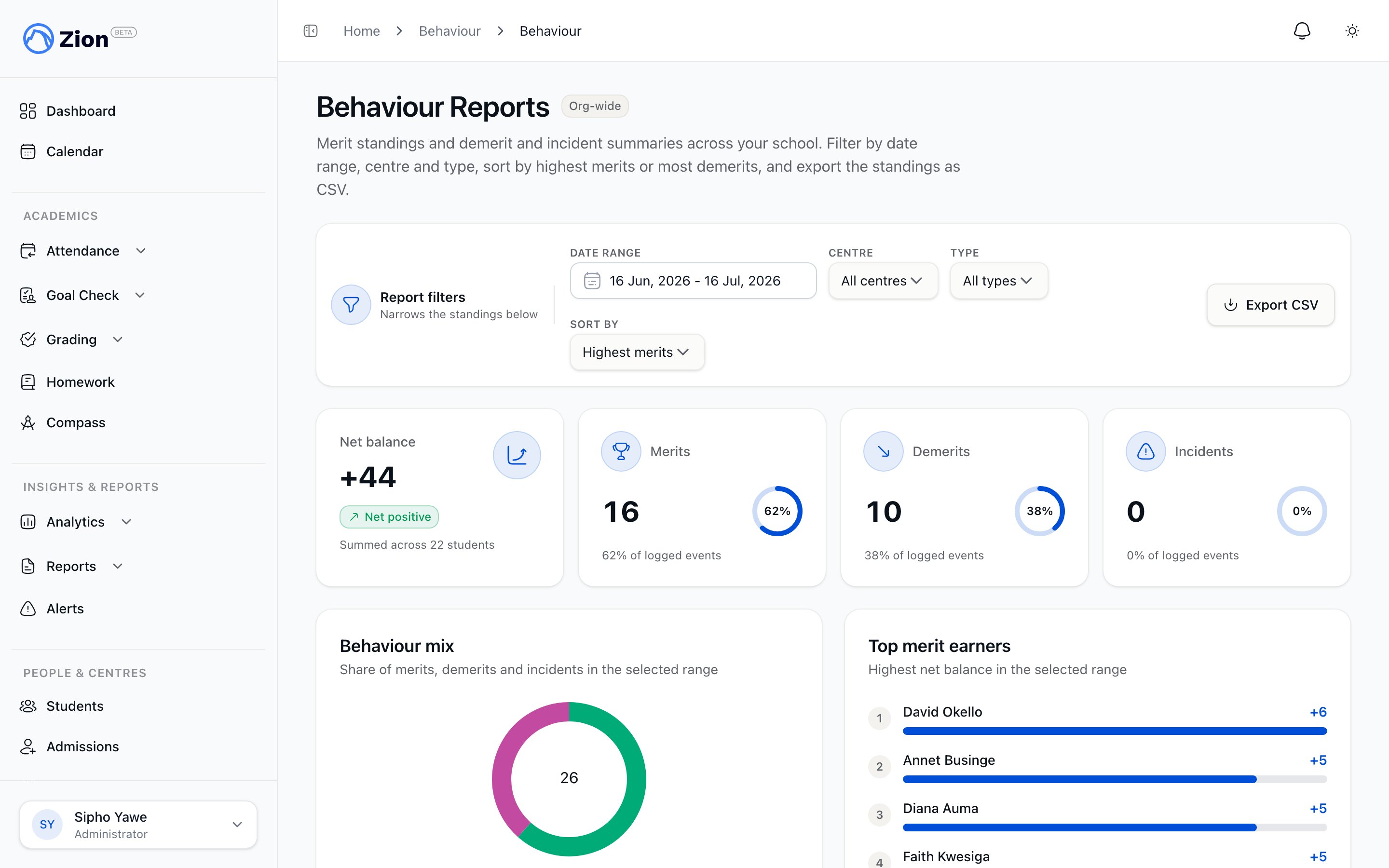
A ranked standings table filtered by date range and centre
Who sees what
This scoping cannot be bypassed from what a supervisor or monitor selects on screen. If they somehow request a centre outside their assignment, Zion ignores it and returns only their assigned centres’ data.
Filters
1
Open the reports page
Administrators go to Behaviour > Reports in the sidebar. Supervisors and monitors go to Behaviour in their own sidebar.
2
Set the date range
The report defaults to the trailing 30 days. Widen or narrow the range to cover the period you want to review.
3
Filter by centre (administrator only)
Administrators can narrow the standings to a single learning centre. Supervisors and monitors do not see this filter because their view is already limited to their own centres.
4
Filter by type
Narrow the table to merits, demerits, or incidents, or leave it unfiltered to see all three.
5
Sort the table
Choose Highest merits or Most demerits to bring the students you need to review to the top.
Reading the page
A row of summary cards at the top of the report shows the net balance across the filtered results, and how many of the logged events were merits, demerits, and incidents. Below the summary cards, a behaviour mix chart shows the share of merits, demerits, and incidents in the selected range, next to a ranked list of either the top merit earners or the students with the most demerits, matching your sort choice. The standings table lists, per student:- Student name and centre
- Net points balance for the filtered period
- Merit count
- Demerit count
- Incident count
Exporting to CSV
1
Apply your filters
Set the date range, type, and (if administrator) centre filter to match the rows you want to export.
2
Click Export CSV
Zion downloads exactly the rows currently loaded and filtered in the table.
3
Locate the file
The download is named “behaviour-standings”, followed by the start and end dates of your selected range, as a CSV file.
Related pages
Behaviour tracking overview
What merit, demerit, and incident records are and who can log them.
Logging behaviour
How staff log, edit, and delete a merit, demerit, or incident record.
Administrator reports
Where behaviour reports fit alongside other administrator-facing reports.
Roles and permissions
How centre assignment shapes what supervisors and monitors can see.