

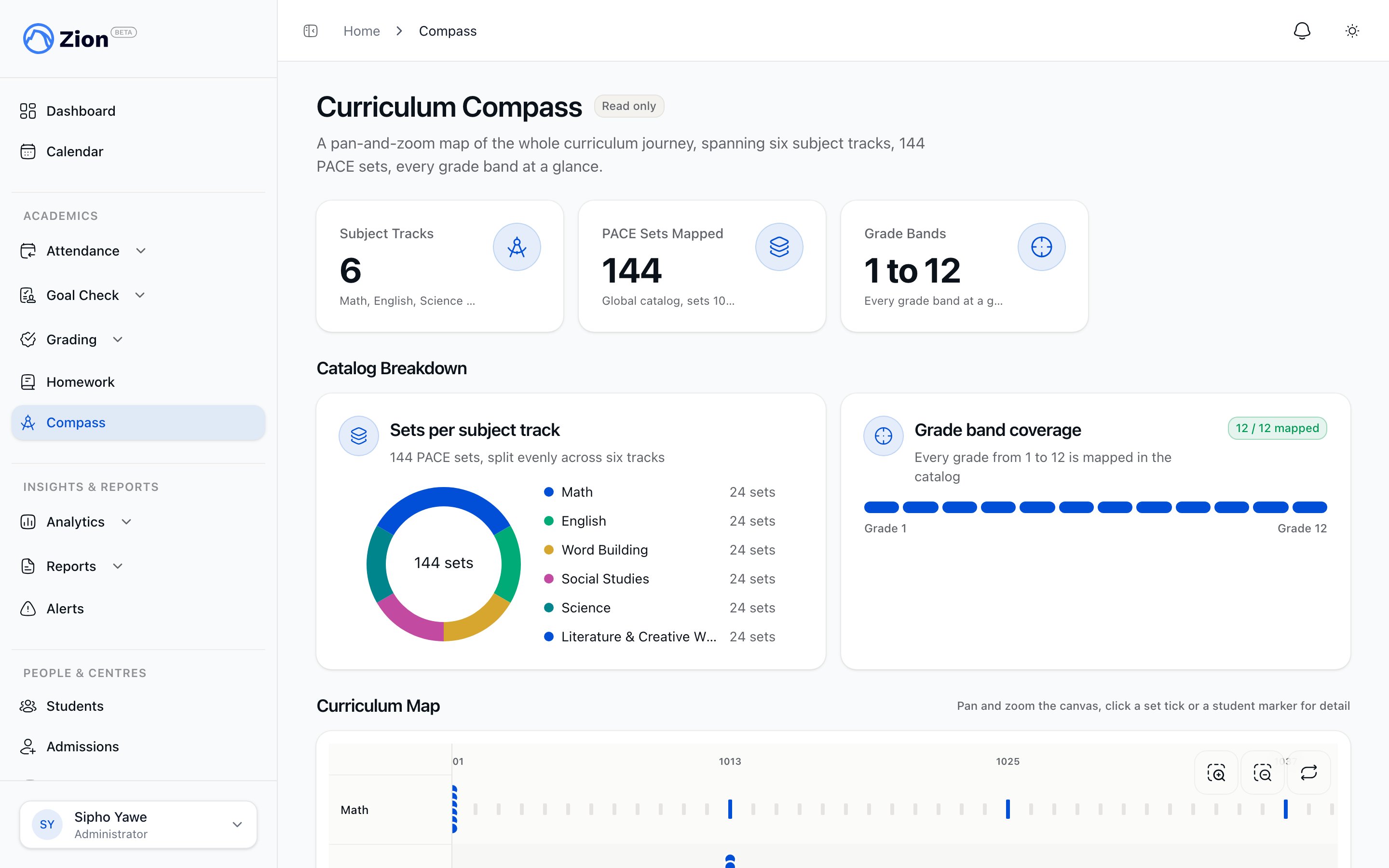
The Curriculum Compass canvas with subject tracks and student position markers.
Nothing on this page writes to the database. Every view, from the canvas to the set and student modals, is read-only.
What the canvas shows
Compass renders the 144 global PACE sets (set numbers 1001 to 1144, spanning 12 grade bands) as six horizontal tracks, one per subject:- Math
- English
- Word Building
- Social Studies
- Science
- Literature & Creative Writing
Who sees which students
Compass scopes the student list to your role. You never see students outside your own reach.
Roles outside this list see no students on Compass. When a role’s cohort is empty, the page shows a plain message instead of a blank canvas, for example “No children found in your account” for a parent with no linked students, or “No students assigned to your centres” for a supervisor with no centre assignment yet.
Administrators and supervisors reach Compass from their own sidebar (Compass). Parents reach it from the parent sidebar. If you don’t see a Compass link, your role or centre assignment may not grant access yet.
Clicking a set
Clicking a set-number tick on any track opens a summary for that set. It shows the set number and grade level, then one row per subject track with:- A short concept summary for that set
- A count of how many currently visible students sit at that set
Clicking a student
Clicking a student marker opens that student’s detail view, showing:- The student’s name and the subject track you clicked
- Their current set number
- Pages done against total pages for that PACE, shown as a progress bar
- The student’s current set across all six subjects, for a full cross-subject snapshot
- A projected completion date for their current PACE, or a note that there isn’t enough data yet
Reading the projected completion date
The projection is based on how many pages a student has actually completed recently, not a fixed pace or a target date.1
Recent completed work is measured
Compass looks at the student’s completed daily goals over the last 28 days and works out a weekly page velocity, how many pages they have been completing per week on average.
2
Remaining pages are divided by that velocity
The pages remaining in the student’s current active PACE across their subjects are divided by the weekly velocity to project a completion date, shown as a full date such as “14 March 2027”.
3
Thin or flat history shows a calm message instead
If the student has completed goals on fewer than 10 distinct days in that 28-day window, or their recent velocity works out to zero or less, Compass shows “Not enough data yet” instead of guessing at a date.
Goal Check overview
See how daily goals, the data behind Compass’s velocity calculation, are set and marked.
PACE assignments
Review how students are assigned to PACEs and subject tracks.
Learning centres
See how supervisor and monitor centre assignments scope what they can view.
Roles and permissions
Compare what each role can see and do across Zion.