

- General books have a due date, are tracked as overdue, and can be marked lost.
- PACE Required books are custody loans only. They never get a due date, are never flagged overdue, and cannot be marked lost.
Every checkout goes through a staff member. Students and parents cannot self-checkout, and their library pages are read-only. See Overdue and lost books for how overdue tracking and lost-book alerts work.
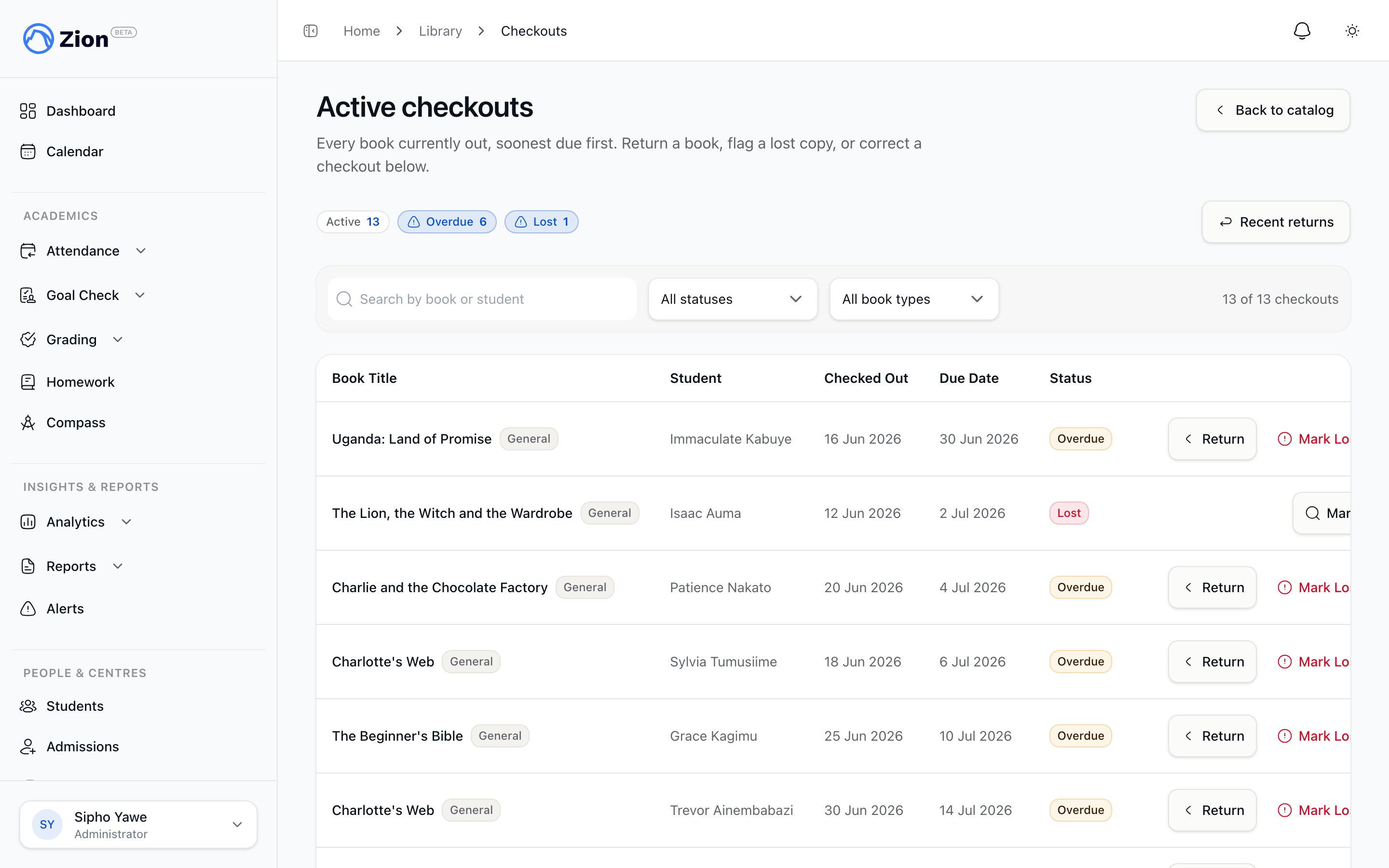
Active checkouts sorted by due date
Browsing the catalog
The catalog lists every book in the school (title, book-type badge, quantity on hand, copies out, and location). Use the search box to filter by title, or the book-type filter to narrow the list to PACE Required or General books. Viewing the catalog requires at least the View capability.Adding a book
Click Add book on the catalog page. This opens the same form used for inventory items, pre-set to the library item type. You choose the book type (PACE Required or General) as part of adding it. Adding a book requires the Manage capability.Adding many books at once
If you have a list of books to bring in, use Bulk add on the catalog page instead of adding them one at a time.1
Download the template
Click Bulk add, then Download template. The spreadsheet has five columns: Name, Book type, Opening quantity, Reorder threshold, and Location. Enter Book type as general or pace_required for each row.
2
Fill it in and upload it
Fill in one row per book, save the file, then choose it on the Bulk add screen. Zion reads the file in your browser, so nothing is sent anywhere until you confirm the books to add.
3
Review the rows
Each row is checked and marked valid or invalid, with a reason shown for anything that fails, such as a missing name or a quantity that isn’t a whole number. Any book whose name already matches one already in your library is skipped automatically, so it is safe to re-upload the same list.
4
Add the books
Click Add books. Only the valid rows are added. Fix and re-upload anything that failed.
Editing a book
Open a book’s overflow menu on the catalog and choose Edit book to change its name, book type, and reorder threshold. The quantity on hand cannot be changed from this form. To correct the number of copies, use Adjust stock instead. You can also archive a book from the same menu. Archiving hides it from the catalog while keeping its checkout history, and it stops appearing as available to check out.Adjusting stock
Open a book’s overflow menu on the catalog and choose Adjust stock to correct the number of copies on hand, for example after a damaged book, a donation, or a recount.1
Choose how to record the change
Enter either a change (a plus or minus number, such as +5 or -2) or a new total count. Zion works out the other value for you.
2
Give a reason
A short reason is required, such as “Damaged in storage” or “Recount correction.” It is kept with the book’s history.
3
Confirm
If the change would take the stock count below zero, Zion asks you to confirm before saving.
Whenever a book is added in bulk, edited, or has its stock adjusted, the school’s other administrators receive an alert, so everyone stays aware of catalog changes.
Checking out a book
1
Open the checkout dialog
On the catalog, find the book and click Check Out.
2
Select the student
Search for and select a student from the list. If you are not an administrator, the list only shows students in your assigned learning centre(s).
3
Set a due date (General books only)
A due date field appears, defaulting to 14 days from today. You can change it. PACE Required books skip this step entirely and show a custody-only notice instead, since they have no due date.
4
Submit
Zion re-checks that the student belongs to your school, is active, and (for non-administrators) falls within your assigned centre. The checkout is rejected if the book has no copies on hand.
Viewing active checkouts
The Active Checkouts table lists every book currently out (not yet returned), sorted with the soonest due date first. PACE Required checkouts have no due date, so they sort to the bottom. Each row’s status is calculated live from today’s date: lost, then overdue, then checked out. Non-administrator staff only see checkouts for students in their assigned learning centre(s). A supervisor or monitor with no centre assignment sees no rows here.Returning a book
Click Return on the book’s row in Active Checkouts. The Return action is hidden once a book has been marked lost, since a lost book goes through Mark Found instead. If a General book’s due date has already passed, returning it flags the checkout as late automatically. PACE Required books are never flagged late, since they carry no due date.Undoing a return
If a book was returned by mistake, open the Recent returns panel above the Active Checkouts table (it loads on demand) and find the row. Click Undo return and confirm. This reopens the checkout as active again. It only works on a checkout that has actually been returned and is not marked lost.Cancelling a mistaken checkout
If a book was checked out to the wrong student or by mistake, open the row’s overflow menu on Active Checkouts and choose Cancel checkout. Confirm the destructive dialog. The copy returns to stock and the checkout closes, but the row stays visible for audit. This only works on a checkout that is still active (not already returned or lost).Editing a due date
For General books, open the row’s overflow menu and choose Edit due date. Pick a new date and save. This is not available for PACE Required checkouts, since they carry no due date to edit.Why doesn't a PACE Required book ask for a due date?
Why doesn't a PACE Required book ask for a due date?
PACE Required books are treated as custody loans rather than time-limited loans. They never get a due date, are never marked overdue, and cannot be marked lost, undone, or edited for a due date.
What if the book has no copies left?
What if the book has no copies left?
The checkout is rejected if the book is out of stock, even if the catalog list has not yet refreshed to show zero copies.
Can a supervisor or monitor check out a book to any student?
Can a supervisor or monitor check out a book to any student?
No. A non-administrator can only lend to a student in one of their assigned learning centres. If they have no centre assignment, they cannot check out or view checkouts for any student.
Library overview
How the catalog, book types, and checkout desk fit together.
Overdue and lost books
How overdue detection, lost-book flags, and alerts work.
Inventory overview
The shared inventory system that library books belong to.
Roles and permissions
What each role can see and do across Zion.