

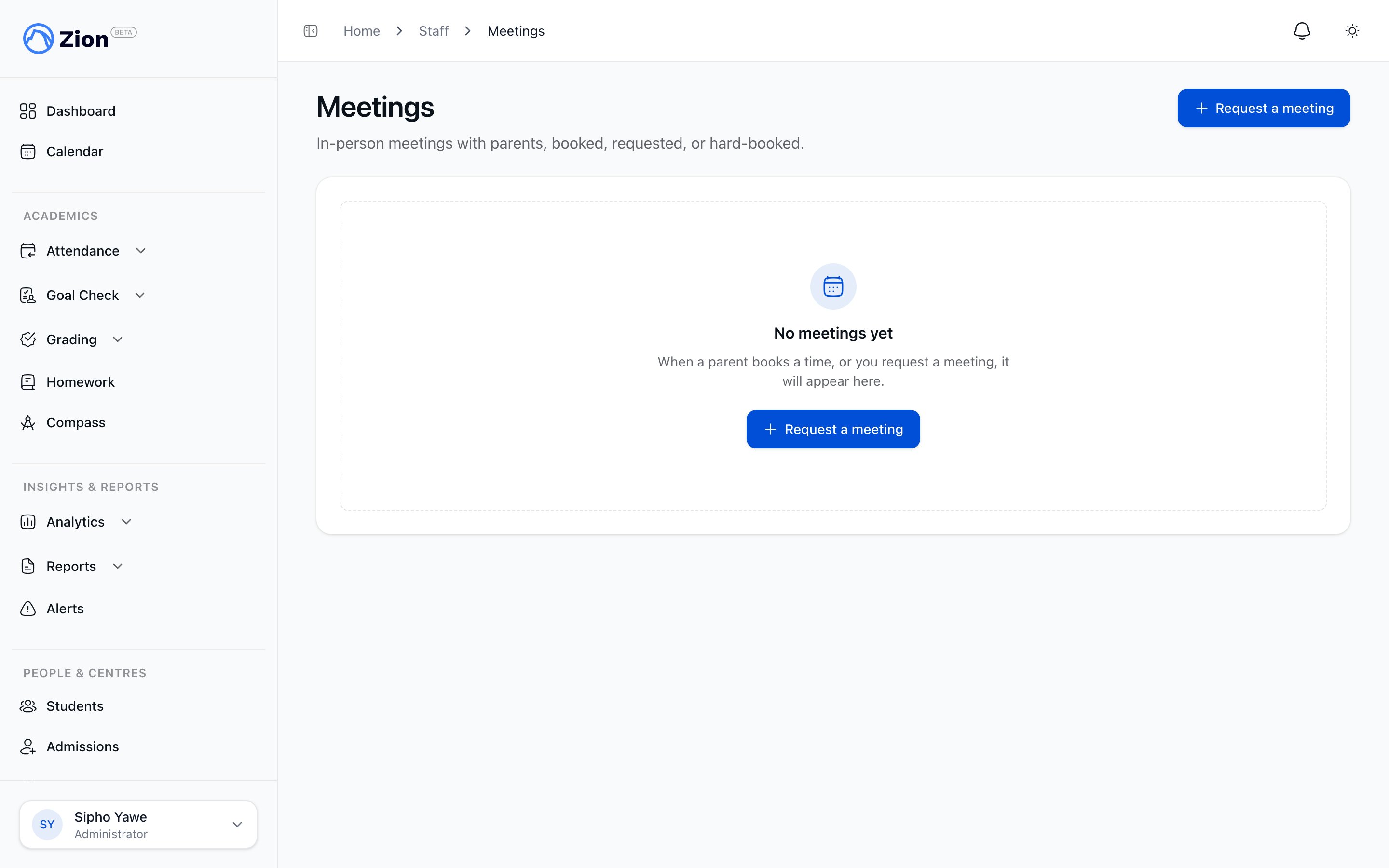
Viewing meeting requests and booked meetings from the staff meetings list
Parents can only book or request meetings with supervisors and monitors assigned to their child’s learning centre. Administrators are not bookable by parents.
Parent books an open slot
1
Open the booking wizard
Go to Meetings in the parent app and click Book a meeting.
2
Pick a child
Choose which linked child the meeting is about.
3
Pick a staff member
Only supervisors and monitors assigned to that child’s learning centre appear as bookable.
4
Pick a date, then a time
Available dates show first, then the open time slots on that date.
5
Confirm
The slot is claimed instantly and exclusively, so two parents can never book the same slot. A slot that has already passed or was just taken is rejected. Both the parent and the staff member get a calendar event and a notification.
When no slots are open
If the staff member has no open slots, the parent has two options from the same booking wizard.- Request a meeting
- Watch for new availability
The parent proposes up to 5 candidate times, with an optional agenda. This creates a pending request awaiting the staff member’s response. The staff member is notified and can accept one of the proposed times, decline with a reason, or counter with a different time.
Staff-initiated meetings
Supervisors, monitors, and administrators can start a meeting with a parent directly, without waiting for the parent to book.1
Open the new meeting form
Go to Meetings in the staff area and click Request a meeting, then continue on the new meeting page.
2
Pick a student
Administrators can pick any student in the org. Supervisors and monitors are limited to students in their assigned centres.
3
Pick a staff member
This can be the initiating staff member or a colleague who is bookable for that student.
4
Choose request or hard-book
Propose candidate times and wait for the parent to respond, or claim an open slot immediately with no parent confirmation needed.
A hard-booked meeting is confirmed the moment it’s created. Calendar events and notifications go out right away to both the staff member and the parent.
Responding to a pending request
A pending request is always waiting on one specific party. Only that party can respond.
If a parent counters a staff-initiated request, the staff member must respond next. If staff counters a parent-initiated request, the parent must confirm the countered time from the Meetings page in the parent app.
Auto-expiry
A pending request does not stay open forever. Zion checks every pending request each day, and once every proposed time has passed with no response, the request is marked expired. The original initiator is notified, and can start over: a parent can book again, and staff can re-propose.Meetings overview
How meetings and requests fit together, plus the full status list.
Publishing availability
How staff and administrators create the slots parents book against.
Managing and documenting meetings
Cancelling, rescheduling, reassigning, notes, and marking a meeting completed or no-show.
Meetings and communication for parents
The parent-facing walkthrough for booking, requesting, and following up on a meeting.