

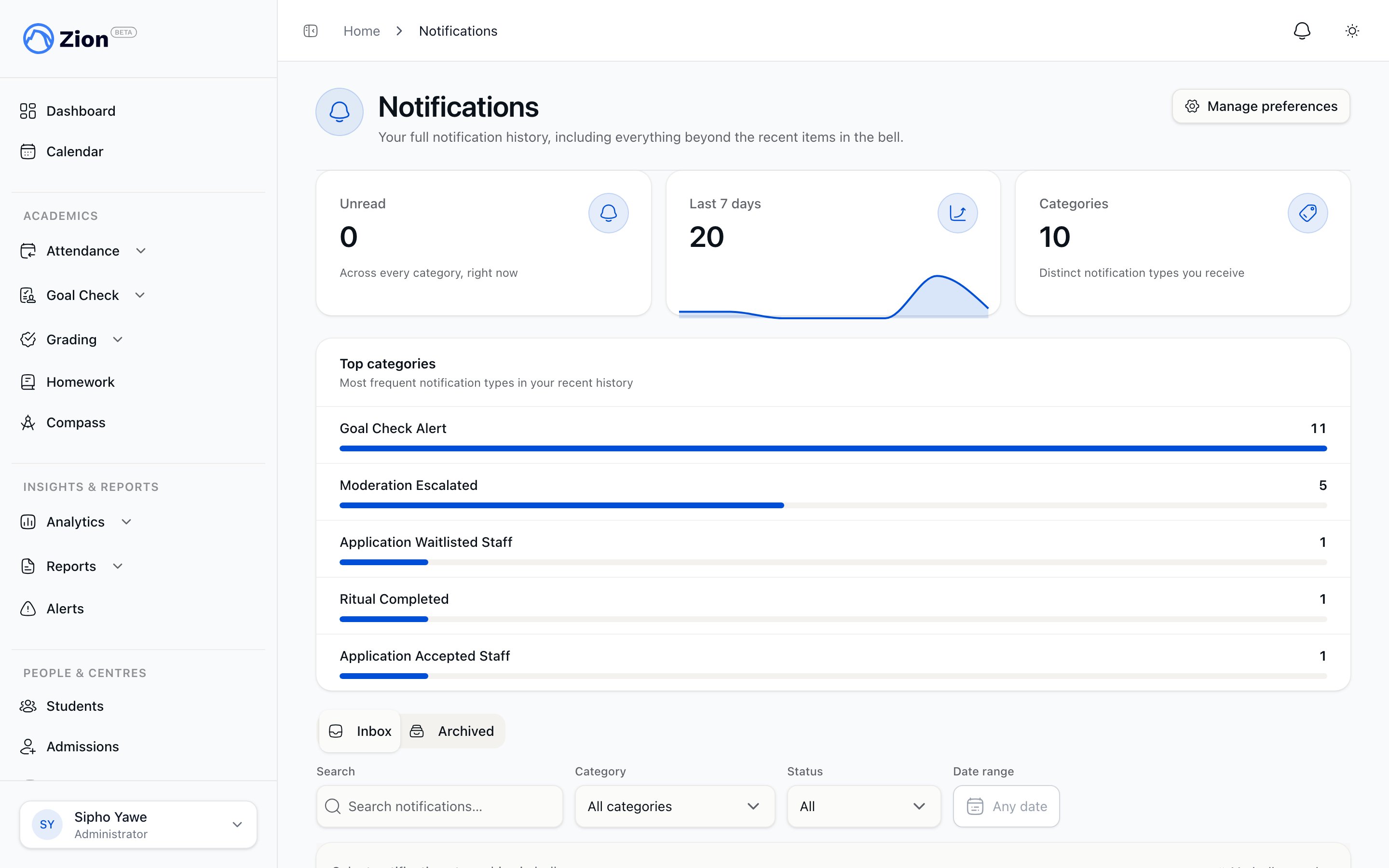
The notification history page grouped by date
WhatsApp is wired into the notification system but is only active for the categories a caller explicitly enables. There is no organization-wide WhatsApp toggle. In-app and email are the two channels every role can rely on.
The notification bell
Every dashboard header carries a notification bell. It works the same way for every role:- An unread-count badge shows on the bell, capped at display “99+” once unread notifications pass that count.
- Clicking the bell opens a short list of recent notifications: a popover on desktop, a full-width sheet on mobile.
- A “See all” link in that list opens the full notification history for the current portal.
The notification history page
The history page groups notifications by date (Today, Yesterday, Earlier) and loads more as you scroll. It has two tabs:- Inbox, for active notifications.
- Archived, for ones you have filed away.
Row and bulk actions
Snoozing and dismissing only affect the individual row you act on. Bulk actions apply to whatever rows are currently selected.
Where notifications come from
Notifications are grouped into categories, and the categories a person sees depend on their role. A parent, for example, only sees categories relevant to their child’s records (homework, attendance, meetings, report cards), while an administrator sees the full set for the school, including billing and staff-management categories. Features across Zion that send notifications this way include:Goal Check
Goal-marking and daily routine reminders
Attendance
Attendance alerts and daily marks
Homework
Assignment and verification updates
Meetings
Booking, requests, and scheduling changes
Grading
Score entry and moderation updates
Broadcasts
School-wide and centre-wide announcements
Notification preferences matrix
On your notification preferences page, every role sees a grid of the categories they can receive, with a toggle per channel: In-App, Email, and (where eligible) WhatsApp.- The In-App and Email columns always show.
- The WhatsApp column appears only if your role has at least one category that is WhatsApp-eligible.
- The matrix is opt-out: a missing preference row means the channel stays on by default. Turning a toggle off stops that category from reaching you on that channel.
- The list also includes any category you have actually received a notification for, even if it is not yet part of the standard catalogue for your role.
Delivery settings: digest and quiet hours
Below the preferences matrix, each person controls how their email notifications are timed:1
Choose Immediate or Digest
Immediate sends one email per event as it happens. Digest batches your notifications into a single daily summary email instead.
2
Set quiet hours (optional)
Enter a start and end time, in your organization’s local time, during which email (and WhatsApp, where active) is held rather than sent. Both a start and an end must be set together, or neither.
3
Save
Held notifications are released once the quiet-hours window ends. In-app notifications are never held or batched: the bell and history page stay live regardless of your digest or quiet-hours settings.
Related pages
Broadcasts
Compose and send school-wide or centre-wide announcements
Deliverability and audit
Email suppression handling and the organization-wide notification audit log
Roles and permissions
What each of the five roles can see and do
Alerts
Threshold-based alerts that also arrive as notifications