

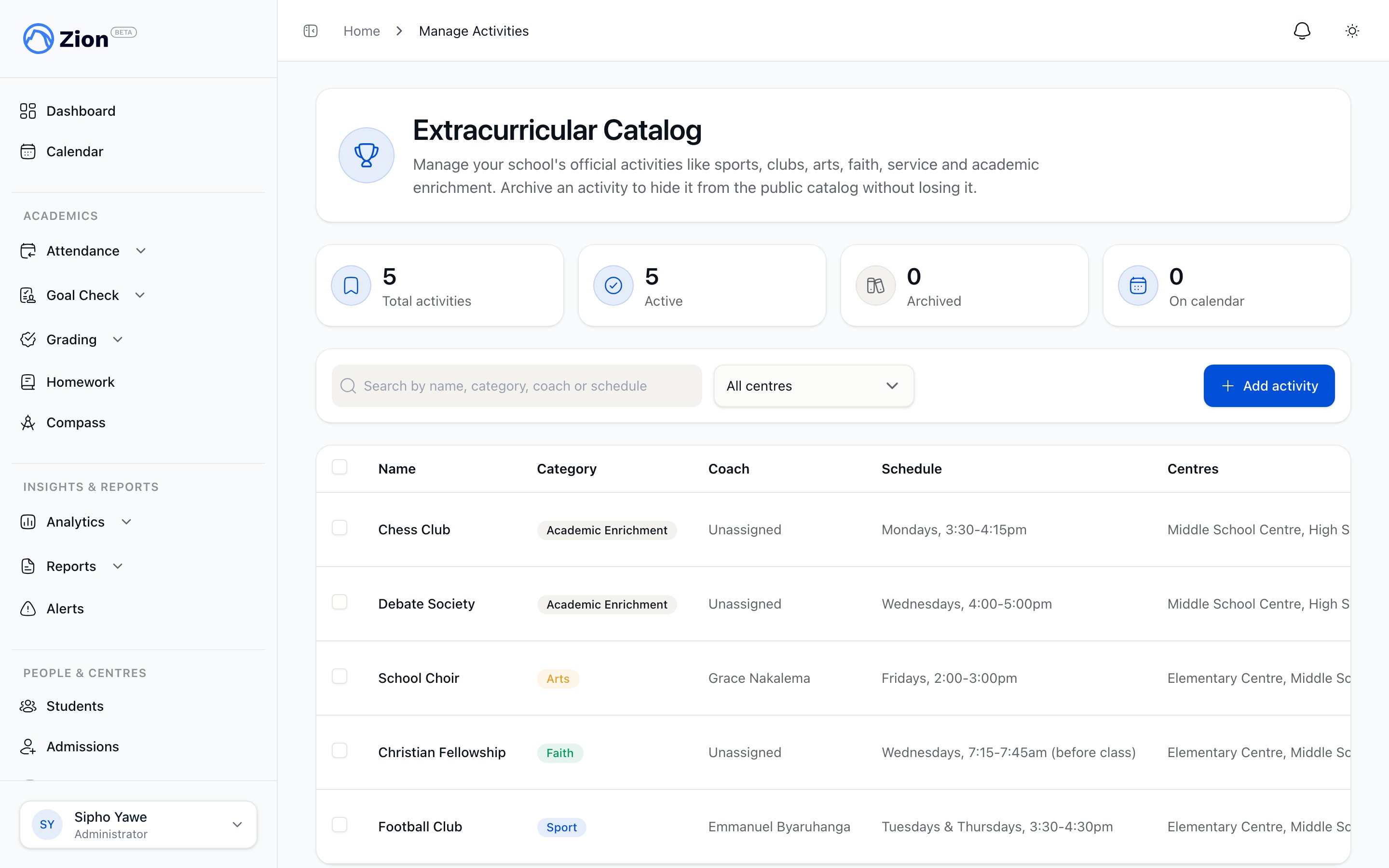
Managing the activity catalog with create, edit, and archive actions
The catalog is not an enrolment system. There is no seat count, waitlist, fee, or consent flow attached to an activity. See Family interest and reports for how parents and students signal interest.
Who can do what
The person in charge of an activity does not use this page. They edit only their own activity’s schedule from Activities I Run.
Creating an activity
1
Open Manage Activities or Centre Activities
Administrators open Extracurriculars, then Manage Activities, from the sidebar. Supervisors open their Centre Activities page. Click Add activity.
2
Fill in the required fields
Enter a Name (up to 120 characters) and a Category. Category is one of six fixed values: sport, club, arts, faith, service, or academic enrichment. Enter a Schedule summary (up to 300 characters) describing when and where the activity meets in plain text.
3
Add optional details
Description accepts up to 500 characters. Person in Charge lets you assign a staff member from your school; the person must be an active member of your school, which is checked when you save.
4
Set the learning centre scope
Leave the centre picker empty for an org-wide activity (administrators only) or select one or more learning centres. A supervisor must select at least one of their own centres; org-wide creation is blocked for supervisors.
5
Optionally attach a calendar recurrence
Set a repeat preset if you want the activity to appear on the school calendar. See below for the recurrence fields.
6
Save
The Active toggle defaults to on. Saving adds the activity to the public catalog and, if a recurrence was set, creates the matching event on the school calendar.
Calendar recurrence
Recurrence is optional. Leaving the preset unset keeps the activity catalog-only, with no calendar event. Setting a preset requires the remaining fields.Creating the calendar event is a secondary step. If it fails, the form shows a calendar warning, but the activity itself still saves. A calendar problem never stops the activity from saving.
Archiving, restoring, and deleting
- Archive
- Restore
- Delete
Archiving hides an activity rather than removing it. It sets the activity to inactive, removes its calendar event, and is recorded in the audit log. Archived activities stop appearing in the public catalog but remain visible to administrators (and to their assigned person in charge on Activities I Run, badged as archived). Archiving, restoring, and deleting are administrator-only, even for a supervisor’s own centre activities.
Editing an archived activity
An archived activity can still be opened and edited by an administrator, or by a supervisor with edit rights to it, but its calendar and centre settings stay locked until it is restored. Only an administrator can restore it.Bulk operations
Bulk actions are administrator-only and apply to up to 200 activities at a time.- Bulk archive, restore, or delete: select activities in the catalog table and apply the action. Each activity succeeds or fails independently, so one failing row does not block the rest.
- Move activities to a new centre scope: select activities and choose a new set of learning centres. Every target centre is checked against your school first, then each selected activity’s centre assignments are replaced and its calendar event is updated to match.
Extracurriculars overview
What the catalog covers and who can see which activities.
Family interest and reports
How parents and students register interest, and the Catalog Report.
Managing calendar events
How activity recurrences relate to the school calendar.
iCal subscription
Subscribing to activity schedules from a personal calendar app.