

Two ways to log a record
The Log behaviour drawer is embedded directly on student records, not on its own page:- The centre roster, on each student row
- The supervisor’s student-detail view
- The administrator’s student-detail view
Supervisors and monitors can only log behaviour for students in a learning centre they are assigned to, from either entry point. This is checked no matter what is selected on screen, so attempting to log against a student outside your assigned centre is rejected. Administrators can log for any student in the school.
Log a behaviour record
1
Open the drawer or screen
From the centre roster or a student’s profile, click Log behaviour. Or, to log from its own page instead, go to Behaviour in the sidebar, choose Log Behaviour, and search for the student first.
2
Pick a category
The Category field lists active categories grouped as Merits, Demerits, and Incidents. Choosing a category pre-fills the Points field with that category’s default point value.
3
Adjust points if needed
Points remain editable after the category pre-fills them. Each type enforces a sign rule:
Enter a value outside that sign and the form rejects it before you can submit.
4
Add a note (optional)
The field labeled Note (visible to parents) is shared with the student’s linked parent. Leave it blank if there is nothing to share.
5
Add a private staff note (optional)
The field labeled Private staff note (not shown to parents) is for staff only. It appears in the staff-facing timeline but is never sent to, or visible from, a parent account.
6
Submit
Click Log behaviour to save the record. The button reads “Logging…” while the request is in flight.
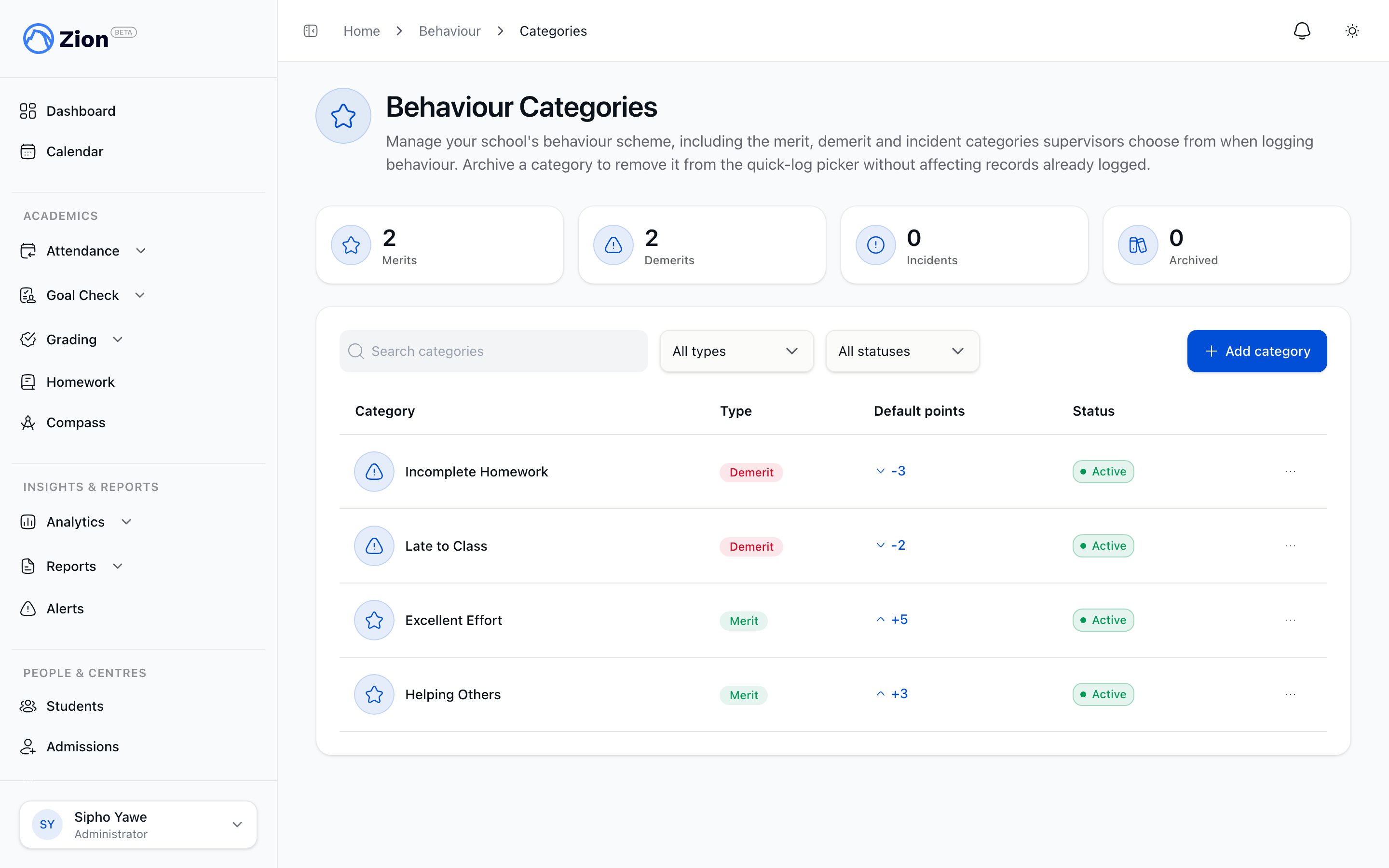
Behaviour categories are managed by administrators and grouped as merits, demerits, and incidents
Public note vs private staff note
Both notes are optional on every record.
What Zion checks when you submit
The category you pick determines the record’s type. Zion always uses the type stored on that category, never a value your device might send, then re-checks the sign-by-type rule against the points you entered. For supervisors and monitors, it also confirms the student belongs to a learning centre you are assigned to before the record is saved.Editing or deleting a record
Once a record is logged, staff can correct or remove it from the student’s behaviour timeline (on their profile). Open the menu on a record and choose Edit or Delete.1
Open a record's menu
On the student’s behaviour timeline, find the record and open its menu.
2
Edit
Change the category, points, date, or either note, then save. The student the record belongs to, who logged it, and which learning centre it belongs to cannot be changed.
3
Delete
Confirm the deletion. This removes the record completely and cannot be undone.
Parent notification
If the student has an accepted parent invitation, logging a record notifies that parent. If the notification cannot be sent, it never blocks or undoes the logged record, and there is no school-wide setting to turn this off. A parent can turn off this notification from their own account settings. Editing or deleting a record does not send a further notification.Behaviour Tracking Overview
What behaviour tracking is and the sign-by-type rule.
Behaviour Reports and Standings
Ranked standings, filters, and CSV export.
Notifications
How Zion delivers notifications like the behaviour-logged alert.
Roles and Permissions
What each role can see and do.