

You only see and act on students who sit in a learning centre you are assigned to. Administrators do not use this page at all. Opening Homework from their own sidebar takes an administrator straight to the full Homework Completion Report instead.
Assign homework
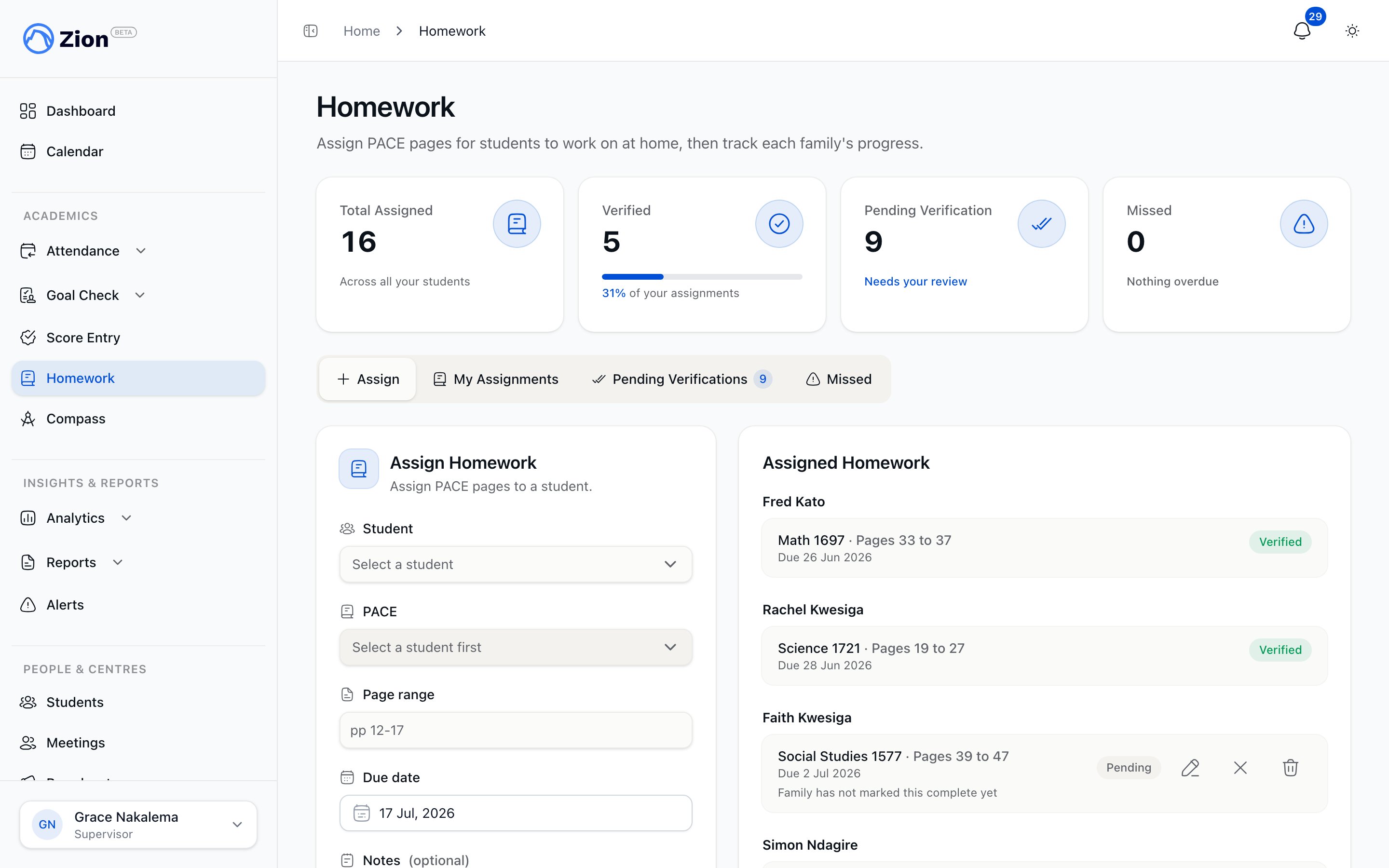
Assigning a page range from a student's active PACE for home study.
1
Open Homework
Go to Homework in the sidebar and land on the Assign tab.
2
Select a student
Choose from the list of students in your assigned learning centres.
3
Select an active PACE
Only PACEs the student is currently in progress on are listed. If the student has none in progress, the list shows a hint instead.
4
Enter the page range
Free text, up to 100 characters (for example “pp 12-17”).
5
Confirm or change the due date
The date field is pre-filled with the next school day and cannot be set before today.
6
Add notes (optional)
Up to 500 characters, visible to the family.
7
Submit
A pending assignment is created, mirrored onto the shared calendar, and the family is notified immediately.
You cannot assign the same PACE to the same student twice for the same due day. The system rejects the duplicate.
The next-school-day default
The due date defaults to the next school day, not simply tomorrow. Zion computes tomorrow in the school’s timezone, then skips forward past Saturdays, Sundays, and any all-day holiday event on the org’s calendar. You can still override the suggested date to any day from today forward.My Assignments
The My Assignments tab lists everything you have assigned, grouped by student, with a status chip:
The edit icon appears on pending and parent-done rows. The cancel or excuse icon appears on pending, parent-done, and missed rows. The delete (trash) icon appears only on pending rows, since a verified assignment is permanent.
- Edit a pending item
- Delete
- Cancel or excuse
Open the edit icon on a pending or parent-done row to correct the page range, due date, or notes. This is unavailable once an item is missed or verified; a missed item is corrected from the Missed tab instead (reopen it, or verify it as late).
Verify at goal check
Verification happens either from the goal-check panel, while you are working through a student’s daily goals, or from the Pending Verifications and Missed tabs described below. There are three ways to move an item to Verified, and verification is terminal: once an item is verified there is no un-verify action.On the goal-check panel, if a student has more than one homework item waiting on you, a “Verify all shown” button confirms every item on screen for that student in one tap. The Pending Verifications tab below does not have this shortcut, so you confirm items there one at a time.
Pending Verifications tab
This tab lists every unverified assignment, pending or parent-done, across all students in your centres, grouped by student and sorted oldest-due first. Use the same Verify or Mark Done actions here as you would from the goal-check panel, one item at a time.Missed tab
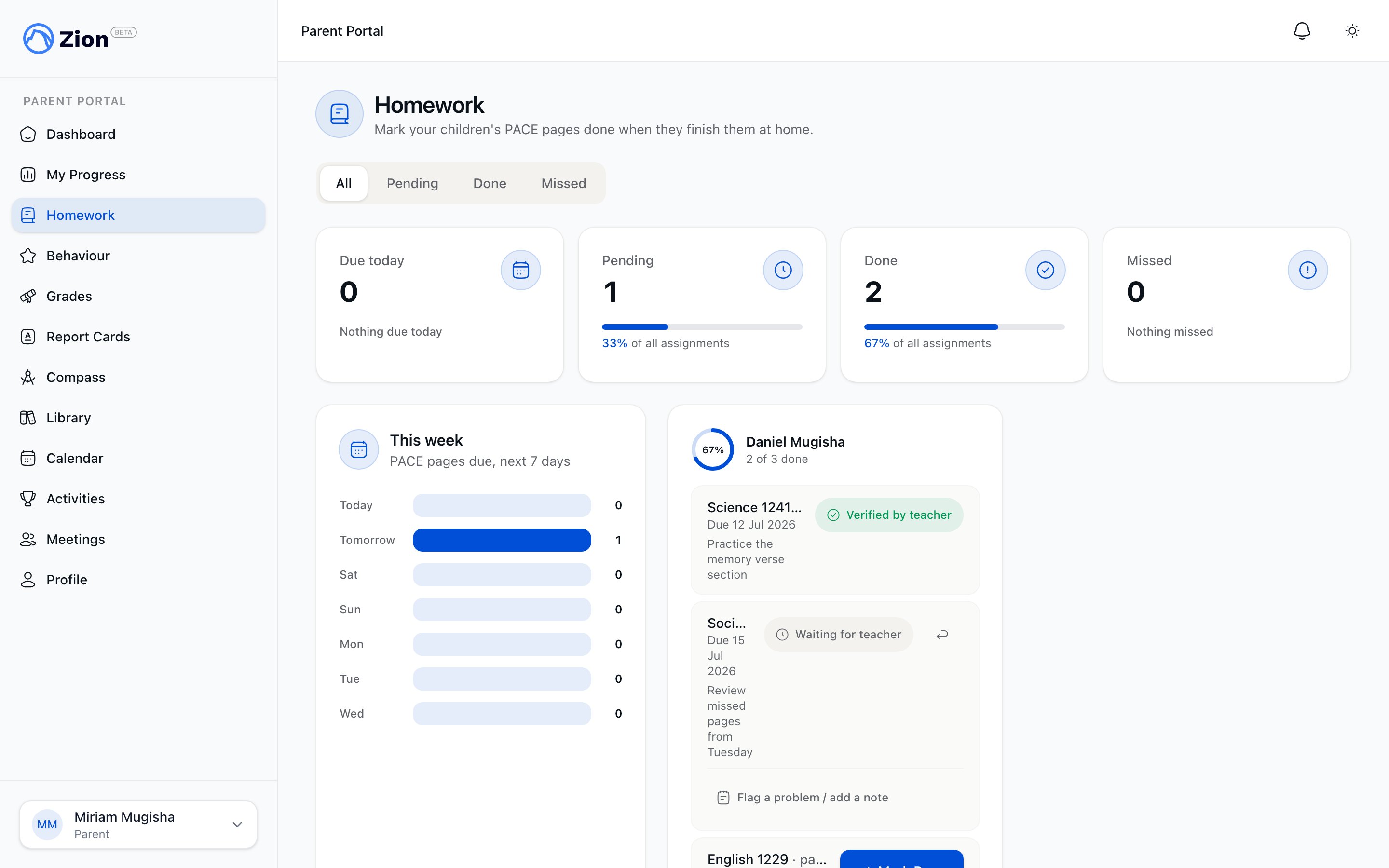
A parent's homework list showing items marked done at home.
- Verify (late): confirm the work was actually completed after the due date; the record keeps a late flag.
- Reopen: revert the item back to Pending if it should not have been marked missed, or the student still needs to complete it.
- Cancel or excuse: withdraw the item as described above; a corrective notice is sent since it had already been flagged missed.
Homework overview
What homework is in Zion and how the assignment lifecycle works
Homework Completion Report
Per-student completion, participation, and missed rates
Goal Check overview
Where daily verification also takes place
Roles and permissions
Who can assign, verify, and view homework