

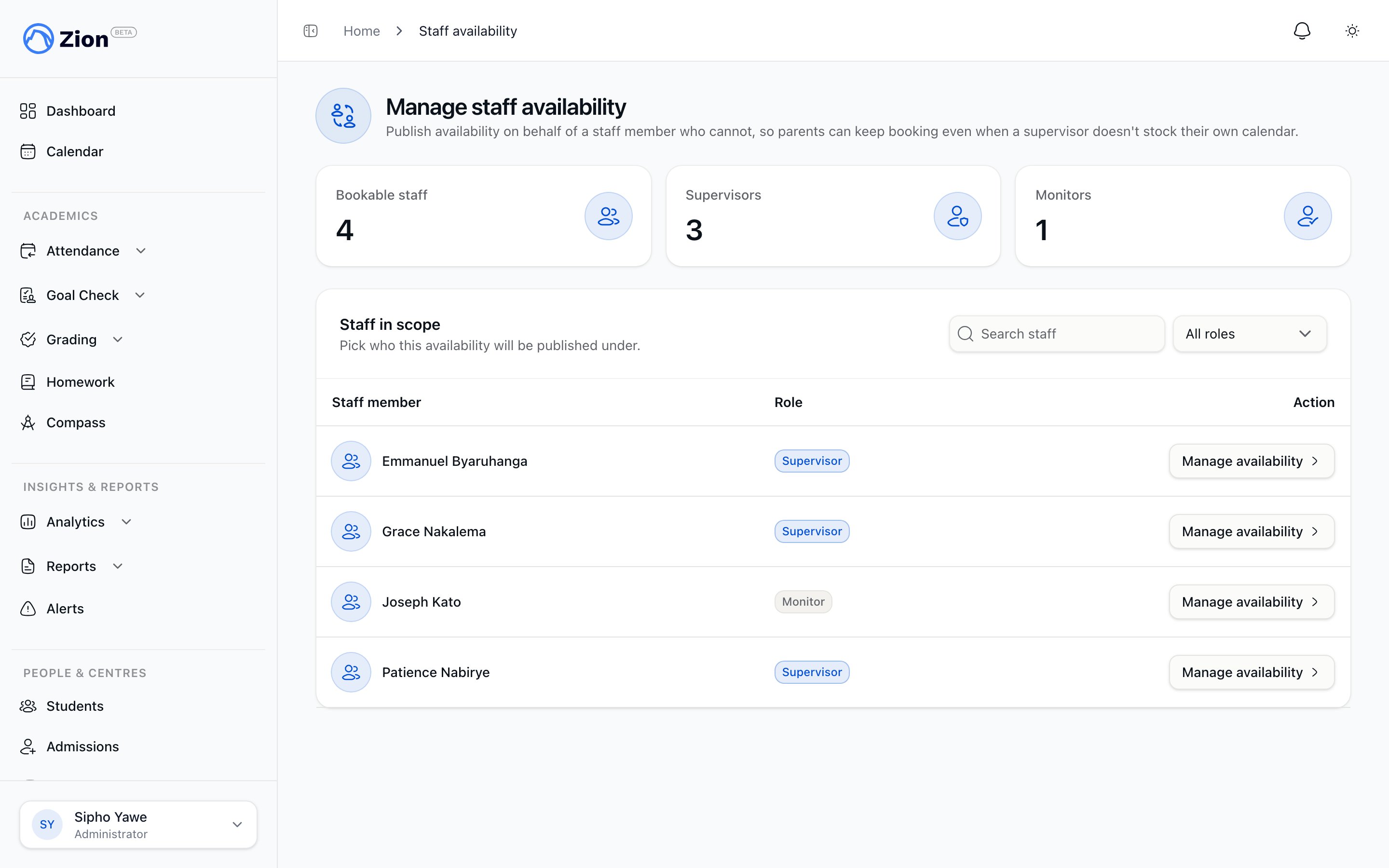
Publishing bookable time slots on the staff availability page
Who can publish availability
Administrators, teaching staff, parents, and students do not publish availability. A staff member is only bookable by a parent if they hold the supervisor or monitor role and are assigned to the child’s learning centre. Administrators are never bookable.
Publishing a slot
1
Open the availability page
Supervisors and monitors go to Availability in the staff area. Administrators go to Availability in the admin area and select the staff member to publish for.
2
Choose a single slot or bulk-generate
Create one slot at a time by setting a date, start time, and end time, or bulk-generate a schedule using a recurring preset, an explicit list of dates or a date range, or by copying last week’s slots forward by seven days.
3
Save
The slot is published immediately. If publishing on behalf of a staff member, that staff member is notified, and any parent who is watching for openings with that staff member is notified too.
Bulk generation is capped at 200 slots per call.
Rules that keep slots valid
- Slots cannot overlap. Zion checks for overlap before saving, with a second safeguard built in as a backstop, so an overlapping slot can never be saved by mistake.
- Slots cannot be created in the past. The check compares the slot against today’s date in the Africa/Kampala time zone.
- A slot only becomes bookable once it is published and remains unbooked. It disappears from the bookable list the moment a parent claims it.
Deleting a slot
A staff member, or an administrator acting on their behalf, can delete a slot they published as long as it has not been booked. A slot that is already attached to a meeting cannot be deleted directly. Cancel the meeting first, which frees the slot, and then delete it if needed.How a slot becomes bookable
Once a slot is published:- It appears to parents whose child is assigned to that staff member’s learning centre, in the Book a meeting wizard on the parent Meetings page.
- A parent claims it instantly and exclusively, so two parents can never book the same slot.
- A stale slot, one whose time has already passed, is rejected if a parent tries to book it.
- If no slots are open for a given staff member, a parent can instead propose candidate times as a request, or subscribe to be notified when that staff member next publishes a slot.
Meetings overview
How meetings, slots, and requests fit together.
Booking and requests
How parents book a slot or request a time, and how staff respond.
Managing and documenting meetings
Rescheduling, cancelling, notes, and marking a meeting complete or no-show.
Roles and permissions
Full reference of what each role can do across Zion.