

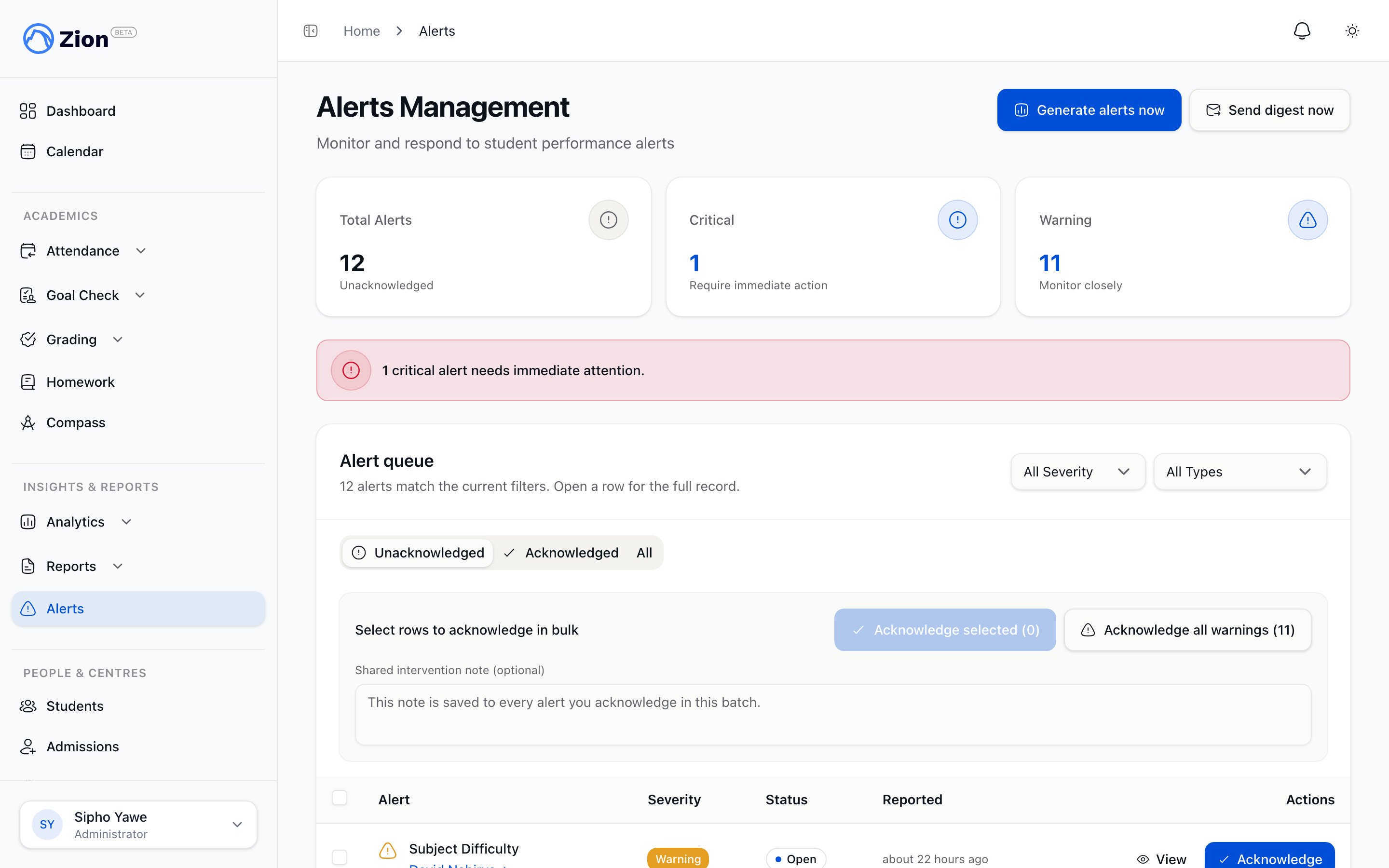
The alerts inbox listing student, centre, and subject alerts across the organization.
Who sees what
- Administrator
- Supervisor
The administrator’s alerts inbox, at Alerts in the sidebar, shows every alert across the organization. There is no centre restriction. Administrators also get two manual controls not shown to supervisors: Generate Alerts Now and Send Digest Now.
If an administrator opens the supervisor alerts URL directly, or a supervisor opens the administrator alerts URL directly, the app redirects them to the dashboard. Each view is gated to its own role.
What an alert is
Every alert has three properties:The seven alert types
Each alert type has a default threshold. An administrator can adjust these on the alert threshold settings page.A separate setting, alert expiry, auto-dismisses a stale alert after a configurable window (7 days by default) if nobody has acted on it. This applies to every alert type and is always on.
Reading the inbox
The inbox has a Severity filter, an Alert Type filter, and three tabs: Unacknowledged, Acknowledged, and All. When a tab has nothing to show, the inbox displays “No Alerts Found.”Acknowledge and resolve lifecycle
1
Acknowledge
Open an alert and choose Acknowledge. A dialog lets you add an optional note. This moves the alert from open to acknowledged and records who acknowledged it.
2
Resolve
Once the issue behind an acknowledged alert has been handled, choose Resolve to move it from acknowledged to resolved.
3
Reopen
If the same issue recurs, an acknowledged or resolved alert can be reopened, which returns it to open.
Acknowledging in bulk
On the Unacknowledged tab, select multiple alerts with the checkboxes, or use the Acknowledge all warnings shortcut to select every warning-severity alert in one action. Add one note in the shared field and it is attached to every alert in the batch when you acknowledge.Generating alerts (administrator only)
Alerts generate automatically on a daily schedule, but an administrator can also trigger generation on demand from the alerts inbox:- Generate Alerts Now runs the alert-generation check immediately instead of waiting for the next scheduled run. This requires an active subscription.
- Send Digest Now sends the alert digest immediately.
Attendance alerts are a separate inbox from the one on this page, but work the same way in one respect: once you acknowledge or dismiss an absence alert for a student, Zion waits about a week before raising a new one for that same student, even if the absences continue. This keeps a case you have already dealt with from re-alerting you right away.
Alert and report settings
Adjust thresholds per alert type and manage report scheduling.
Goal Check overview
See how daily goal completion is tracked, which is what feeds these alerts.
Attendance alerts
Attendance-specific alerting, tracked separately from the performance alerts inbox.
Roles and permissions
See exactly which role can see and act on which surfaces.