

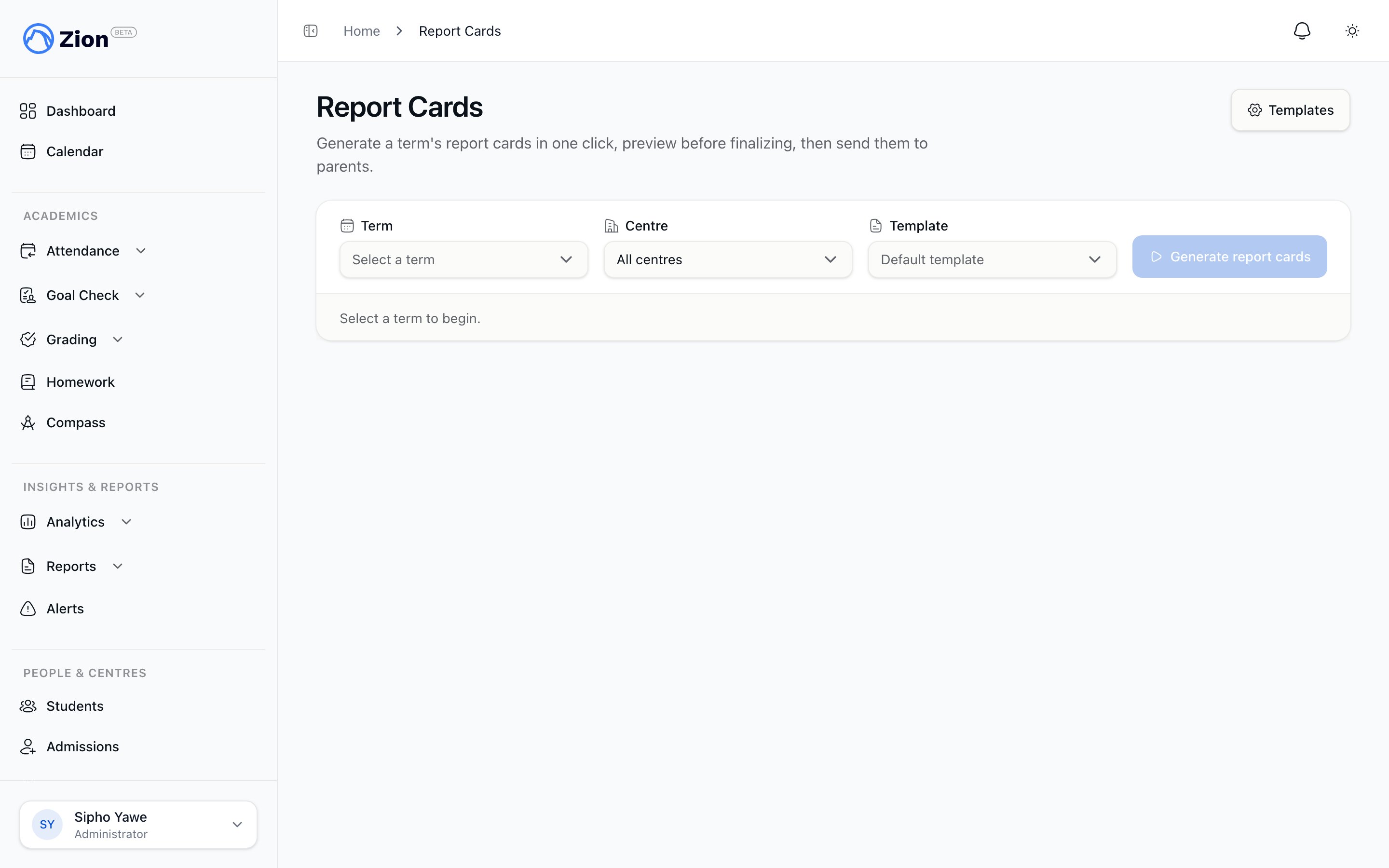
Generating and sending a term's report cards to parents.
Select the scope
1
Choose a term
Pick the academic term you want to generate cards for.
2
Narrow by centre (optional)
Administrators can select a specific centre or leave it on all centres. Supervisors and monitors only ever see and generate for their own assigned centres.
3
Choose a template (optional)
Pick a non-default template if the school has more than one. If you skip this, generation uses the org’s default template, or a built-in default if no template has been created yet. See Report card templates.
Term-readiness warnings
Before you can generate, Zion checks every in-scope student for five possible warnings:
Only the no-grades warning blocks generation. If any student has it, the Generate report cards button stays disabled until you check the acknowledgement box confirming you want to proceed anyway. The other four warnings are informational: they tell you a section of that student’s card will show “No data for this term” without stopping the batch.
PACE “Completed” counts on a report card are labelled Completed (overall) because they are all-time counts, not term-bound. Test scores, attendance, and Goal Check data on the card are scoped to the selected term.
Preview a student’s card
Once a term is selected, pick a single student from the readiness list to preview their compiled report card before running the full batch. Use this to confirm a template change looks right, or to check a student flagged with a non-blocking warning before you decide whether to proceed.Generate
1
Click Generate report cards
Generation moves through three stages you can watch on screen: queued, then running with a processed-of-total counter, then complete.
2
Check the failed list
If any individual student fails to generate, they appear in a per-student failed list. A failure for one student does not stop the rest of the batch.
Distribute to parents
Once a term’s cards have generated, the distribution panel offers two actions.- Download all (ZIP)
- Send to parents
Mints a ZIP archive of every generated report card for the term (and centre, if narrowed). Use this to keep an offline copy or hand cards out through another channel.
What parents see
Parents access their children’s cards at Report Cards in the parent portal. They see only published report cards, grouped by child. Cards still generating or not yet sent never appear. Each card has a Download button. Clicking it mints a short-lived signed download link (valid 10 minutes) at the moment of the click rather than exposing a permanent public URL. This is a read-only archive: parents cannot edit, regenerate, or delete a card.Report cards overview
What a report card contains and how term data is compiled.
Report card templates
Build and manage the sections and logo on a report card template.
Permanent record
The multi-year academic record separate from term report cards.
Your child's progress
How parents follow a child’s academic progress across features.