

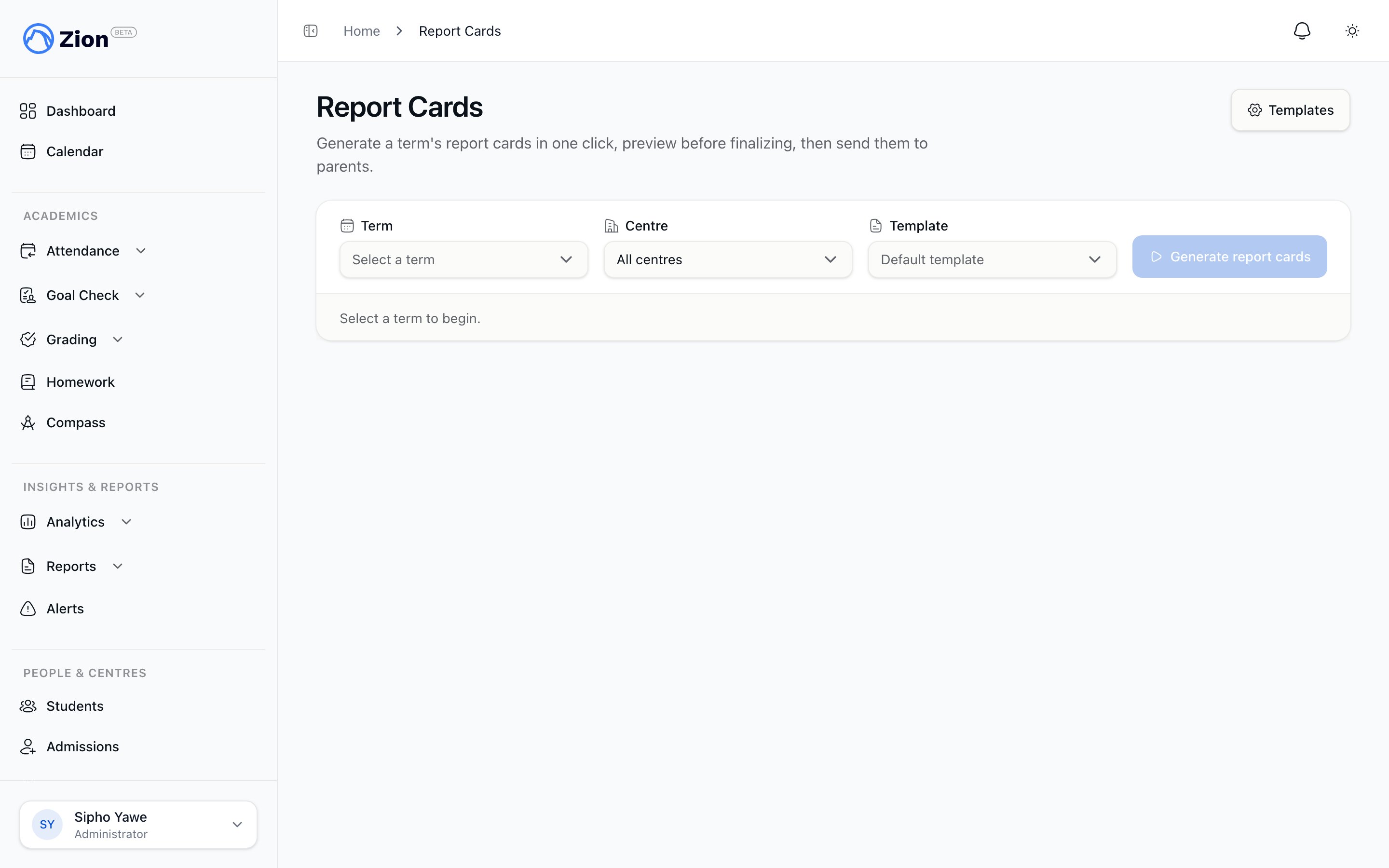
The report cards list showing generated and sent status for each student.
Who can do what
Teaching staff and students do not have access to report cards.
What a report card contains
Every report card is built from five sections. A section shows “No data for this term” if there is nothing to display for that student.Character notes only ever show the public note on a student. Private notes are never included in a report card.
Report card statuses
A report card moves through two states.- Generated. The PDF has been compiled for the term but has not been sent to parents.
- Published. Distribution has run for that card. The card now appears in the parent’s report-card archive.
Term-readiness warnings
Before generating, each in-scope student is checked for possible gaps in their term data: no finalized grades, incomplete grades, no attendance, no Goal Check activity, or no character notes. Only the no-grades warning blocks generation. If a student has zero finalized test scores for the term, the generating staff member must check an acknowledgement box before proceeding. The other warnings are informational and do not stop generation.Generating and distributing
Administrators, supervisors, and monitors generate report cards for a term, optionally scoped to one centre, then distribute them by downloading a ZIP or sending them to parents by email. See Generating and distributing report cards for the full workflow, including delivery-status meanings.Templates
Administrators control what a report card looks like: a logo, a default template, and which of the five sections appear and in what order. If a school has no template configured, Zion uses a built-in default automatically. See Report card templates.What parents see
Parents only ever see published report cards for their own linked children, grouped by child. A report card that has not been published, or that belongs to a student outside the parent’s linked children, never appears. Each report card downloads through a short-lived link generated on demand, not a permanent public URL.Generating and distributing
Run term readiness checks, generate report cards, and send them to parents.
Report card templates
Configure the logo, sections, and default template for your school.
Permanent record
View a student’s multi-year academic history separate from term report cards.
Grading overview
See how PACE test scores are entered and finalized before a term is generated.