

The wizard covers three kinds of data: students, PACE progress, and grades. Attendance history is not supported, since attendance data in most legacy systems is inconsistent and risky to import automatically.
A few other parts of Zion take a spreadsheet directly from their own screen instead of going through this wizard: learning centres (from Learning Centres), staff invitations (from Settings, Users), library books (from Library, Catalog), and PACE booklet stock (from Inventory). Each of those has its own, shorter template. See Spreadsheet templates for where to find each one.
Where to find it
Administrators reach the wizard from the sidebar Import item, under Administration. The page also links to a Data Preparation Guide with prompts you can use to clean up a legacy export before uploading it. No AI runs inside Zion during the import itself; the guide is only a preparation aid.File requirements
The file is read in your browser. Only the rows you confirm on the preview screen are sent to Zion, not the raw file itself.
The four-step wizard
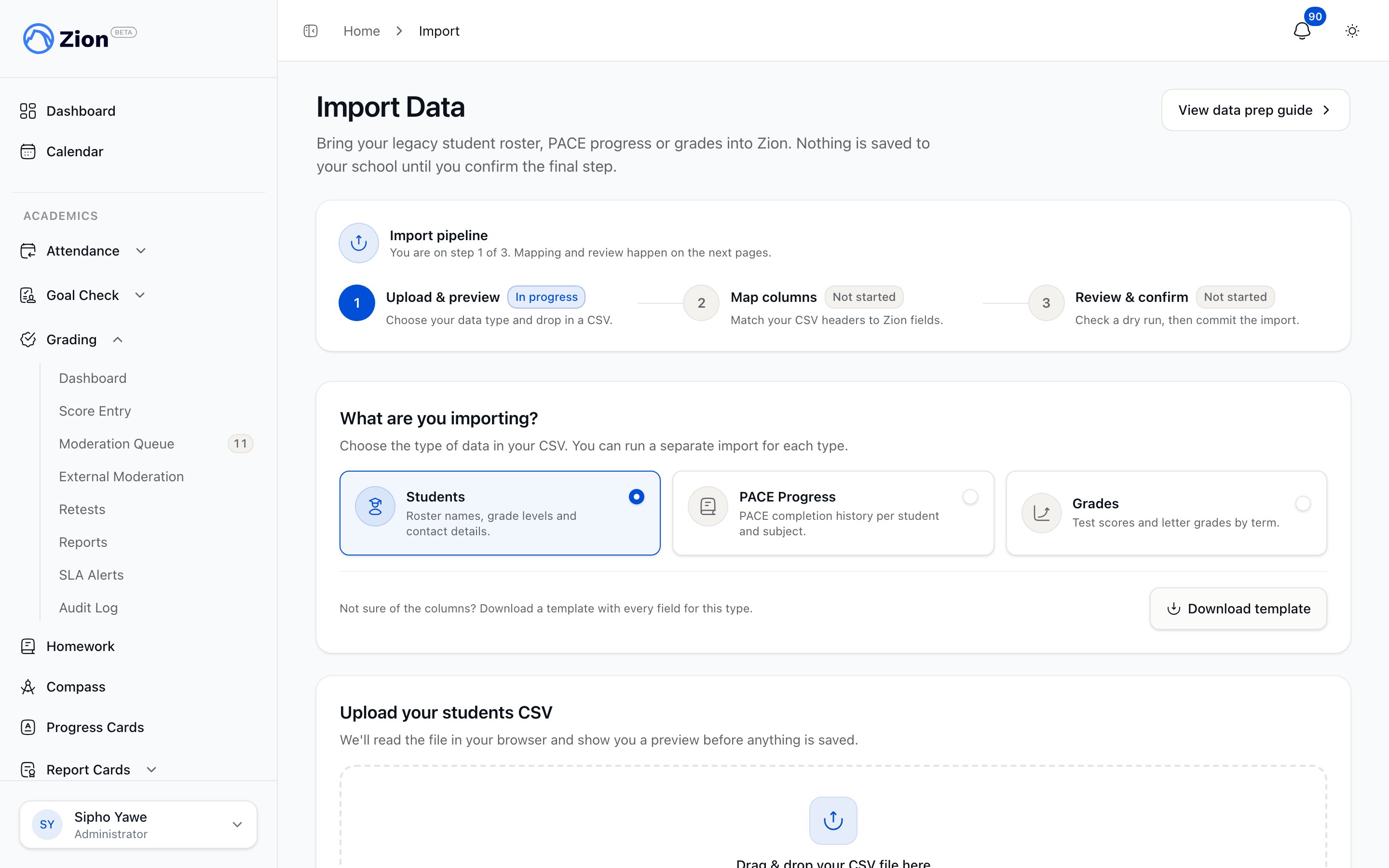
The import wizard, where you choose what you are bringing in and upload the file.
1
Upload
Select or drag in your file and choose which kind of data it contains: Students, PACE Progress, or Grades. Zion reads the file, shows you a sample of the first rows, and asks you to confirm before moving on.
2
Map columns
Match each column heading from your file to a field in Zion. Common headings are recognized automatically. For example, a column named DOB, Date of Birth, or Birthday is recognized as the student’s date of birth either way. Any column you don’t need can be set to “Ignore this column.”Required fields differ by the kind of data. See Spreadsheet templates for the full field list, including every heading Zion recognizes.
3
Preview
Zion classifies every row as create, update, or skip without saving anything yet. You see totals for each outcome, up to 10 sample rows per outcome, and up to 200 warnings explaining why a row would be skipped.
4
Confirm
Once you approve the preview, the import goes in as one all-or-nothing batch. Either every row is written or none are. If it fails partway through, nothing is kept and the session returns to its preview state so you can fix the file and retry. Every attempt, successful or not, writes an audit log entry.
Required fields per kind of data
Status values for PACE progress must read completed, in progress, or not started. Grade scores must be a non-negative number no greater than 999.99.
How rows are matched
Zion matches an incoming row to an existing record first by student code, and if that isn’t present, by exact match on the full name. If two rows in the same file would otherwise create the same record (for example, the same student, subject, and PACE number), the second row is treated as an update to the first.Common reasons a row is skipped
- Missing first or last name (students)
- A date of birth that can’t be read, or an impossible date
- No matching learning centre and no default centre set for your school (students)
- Missing subject, PACE number, or an invalid status (PACE progress)
- Missing subject or assessment name, or a score outside the allowed range (grades)
Need help with a larger or more complex migration instead of running the wizard yourself? See Migration Concierge for the paid, staff-assisted option.
Spreadsheet templates
Column names, formats, and required fields for every import, including centres, staff, and library books.
Migration Concierge
Have Zion staff run your import for you.
Students overview
How student records work once they’re in Zion.
Exporting your data
Request CSV and PDF exports of your school’s data.